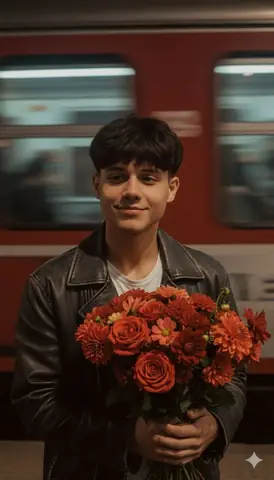
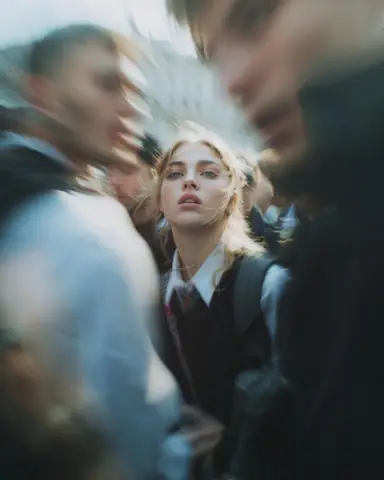
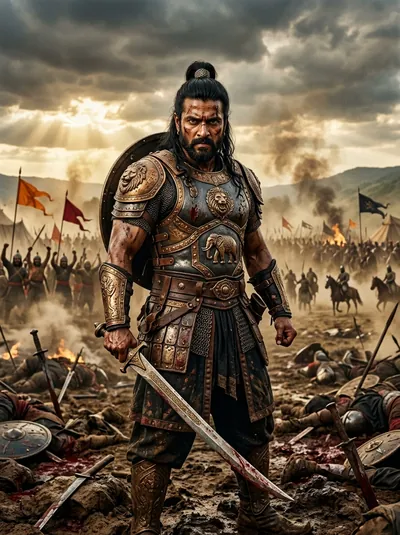
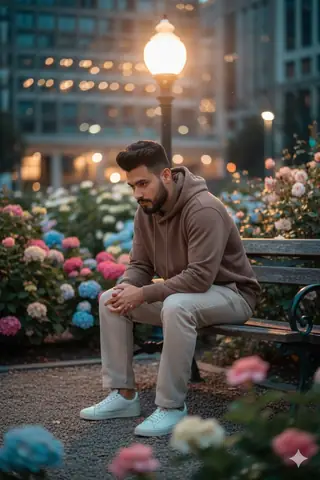
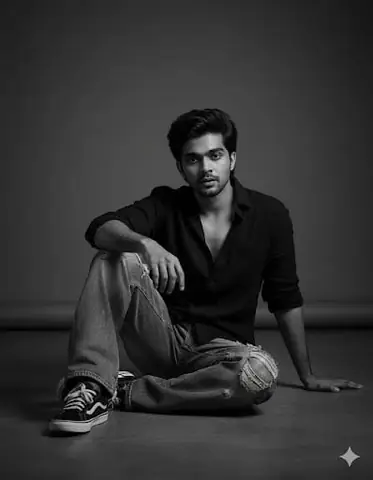
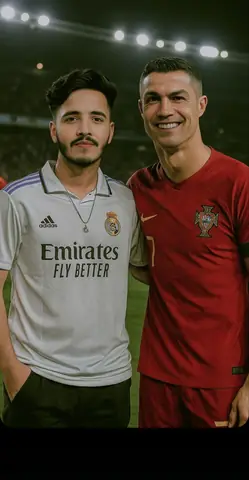
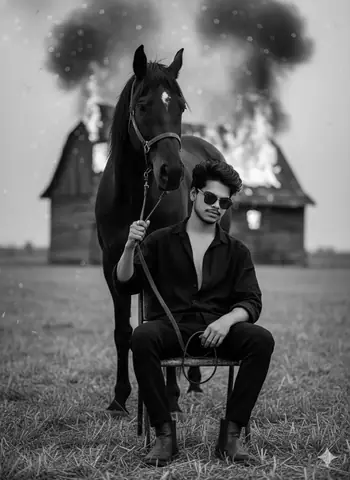
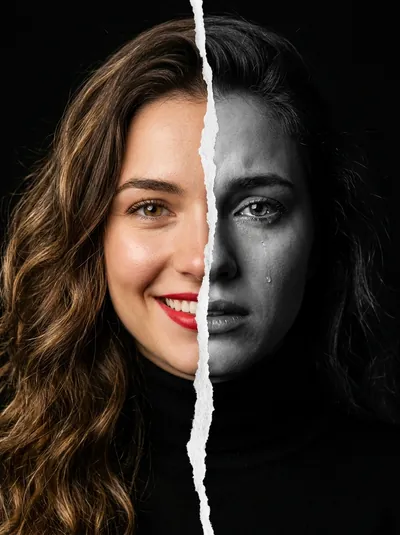
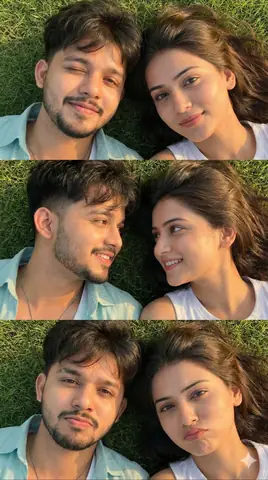
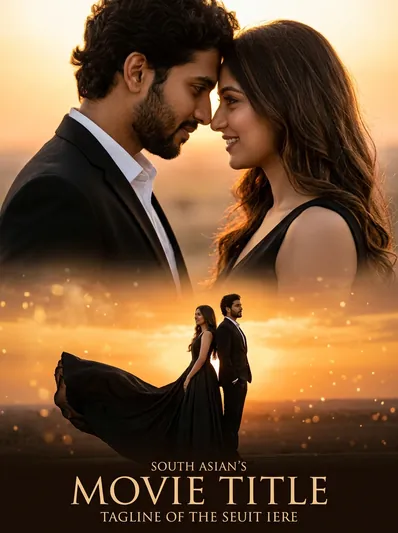
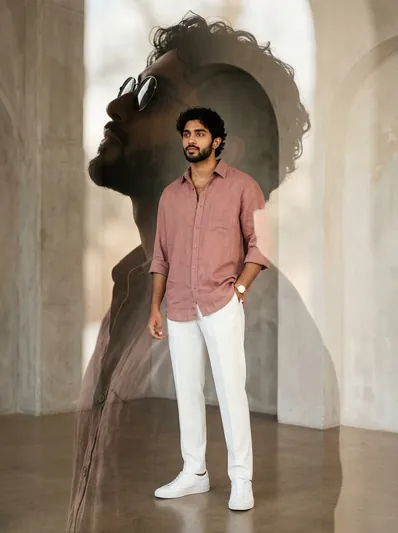
Quick Summary: This verified Google Gemini & Midjourney v6 prompt creates an authentic 90s vintage film aesthetic for Behind-the-Scenes Movie Shot with calibrated lighting, authentic texture physics, and tested 1-click copy-paste formula for instant AI generation without facial distortion.
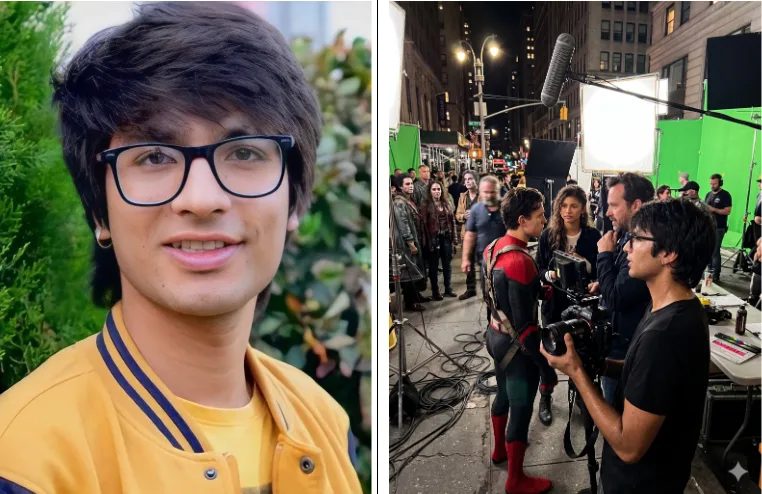
Behind-the-Scenes Movie Shot - Copy Paste AI Prompt
Raw on-set snapshot, crew filming a scene from [movie name], director mid-discussion with camera operator, actors off to the side in full wardrobe and makeup looking exactly as they do in the final film, accurate hair, costume, and character styling unchanged, the moment staged is a clearly recognizable scene from the film with matching set design, props, and blocking, boom mic dipping slightly into frame, cables tangled across the floor, light stands and reflectors crowding the space, Sony a7S III with 50mm f1.8 handheld, slightly off-level framing, harsh mixed lighting from practicals and film rigs, blown highlights and shadow falloff, visible skin texture with sweat and worn makeup, stray hairs and wrinkled fabric, background crew in subtle motion blur, noticeable ISO grain and color shift from mixed light, unpolished and intrusive feel.Technical Prompt Parameters (Vintage Film & Retro Polaroid)
| Parameter | Configuration | Output Impact |
|---|---|---|
| Target AI Engine | Google Gemini & Midjourney v6 | Preserves organic analog warmth, natural color saturation, and retro lighting response. |
| Recommended Aspect Ratio | 4:5 (Classic Film) or 1:1 (Square Polaroid) | Faithful recreation of vintage paper print dimensions and nostalgic photo albums. |
| Camera & Lens Settings | 35mm Leica M6, Kodak Portra 400, f/2.8, subtle chromatic dispersion | Renders genuine analog grain, gentle halation, and authentic film stock color science. |
| Lighting Style | Direct camera flash with soft falloff or warm golden hour sunset flare | Creates natural retro exposure highlights without artificial digital gloss. |
| Negative Constraints | digital sheen, oversaturated HDR, plastic skin, neon light, CGI 3D, modern watermark | Eliminates hyper-digital smoothness to maintain true photochemical aesthetic. |
| Reference Photo | Upload a daylight selfie; avoid heavy ring-light filters for best film look. | Upload front-facing reference photo for face matching. |
How to use this prompt
- Copy the prompt
- Open Google Gemini
- Upload your photo
- Paste the prompt
- Generate the image
How to get better results from Behind-the-Scenes Movie Shot
Behind-the-Scenes Movie Shot Use it as a copy-ready starting point, then adjust the subject, scene, tone and output format for your own result.
- Ai Image
- Film Look
- Group Photo
- your AI tool prompt testing
- fast copy-paste workflow
- creator ready output
Customize before generating
- Replace the main subject, name, product or character details.
- Adjust lighting, background, mood, camera angle or aspect ratio if the prompt is visual.
- Change tone, audience, language and output format if the prompt is for text.
- Keep this core idea clear: Raw on-set snapshot, crew filming a scene from [movie name], director mid-discussion with camera operator, actors off to the side in full wardrobe and makeup looking...
Quick variations to try
- Make Behind-the-Scenes Movie Shot more cinematic with stronger lighting and richer background detail.
- Turn Behind-the-Scenes Movie Shot into a cleaner mobile-first version for social media posts or profile use.
- Create a premium version of Behind-the-Scenes Movie Shot with sharper style, higher detail and a more polished final output.